Systems: connecting your shop, CRM, payments or booking
Screen: Flows → Connections, the Sources tab, the Systems block at the top — /flows/sources.
Your shop, CRM, payment service or booking system already calls an address when something happens: an order is placed, a payment goes through, a visit is booked. Such a call is a webhook. Give the system an address of its own, and every webhook becomes an event that starts your flows — no developer and no event key. A system from the catalog is recognised by itself; for any other, you show once, on its first request, where the phone is and which event it is.
The other way in is an event key: a developer builds every event in the Flows format.
The list of systems
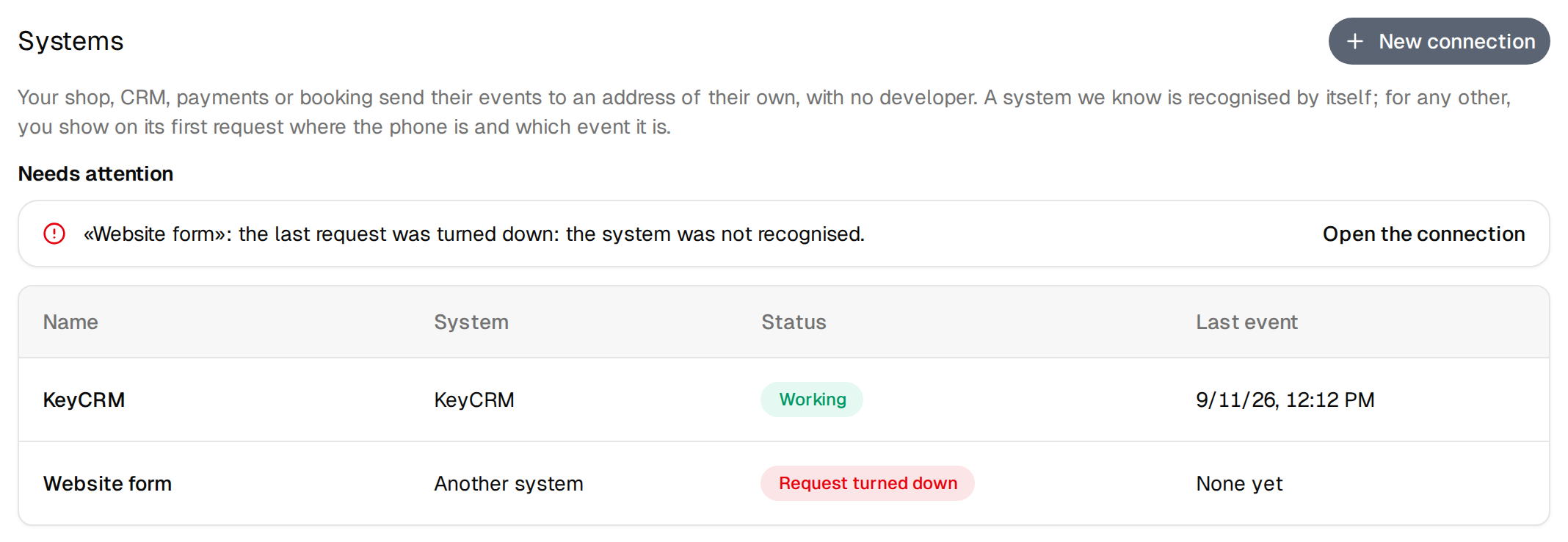
The block lists your connections with their Name, System, Status and Last event. The system is the one you chose, Another system, or Another system · recognised as … once its requests were recognised. A click on the name opens the connection.
| Status | What it means |
|---|---|
| Waiting for a first request | The address is issued, and nothing has come to it yet |
| Working | The last request became an event within the last day |
| No events for a day | No event for over a day — or none at all a day after the connection was made |
| Request turned down | The last request made no event; the reason is under Needs attention |
Needs attention
Above the list, Needs attention names every connection whose last request was turned down, with the reason, and every connection with no events for over a day. Open the connection is next to each.
| Reason | Code | What to do |
|---|---|---|
| the system was not recognised | unrecognized | Open the connection and show what is what in the request — The fields of a request |
| the event is not mapped | unmapped_event | The request names an event that has no event of yours: give that value an event in the table of values |
| no phone, email or customer ID | no_contact | Show where the request has the phone, the email or the customer ID |
| the request's signature is wrong | bad_signature | The signature does not match the secret of the connection — Signature |
| the request's body cannot be read | bad_body | The body is not what the system sends; check the format chosen in its webhook settings |
Any other reason is shown with its code, for example "turned down (quota_exceeded)". Every code — Refused requests.
Connecting a system
Only the owner of the space connects systems — see Who can do what.
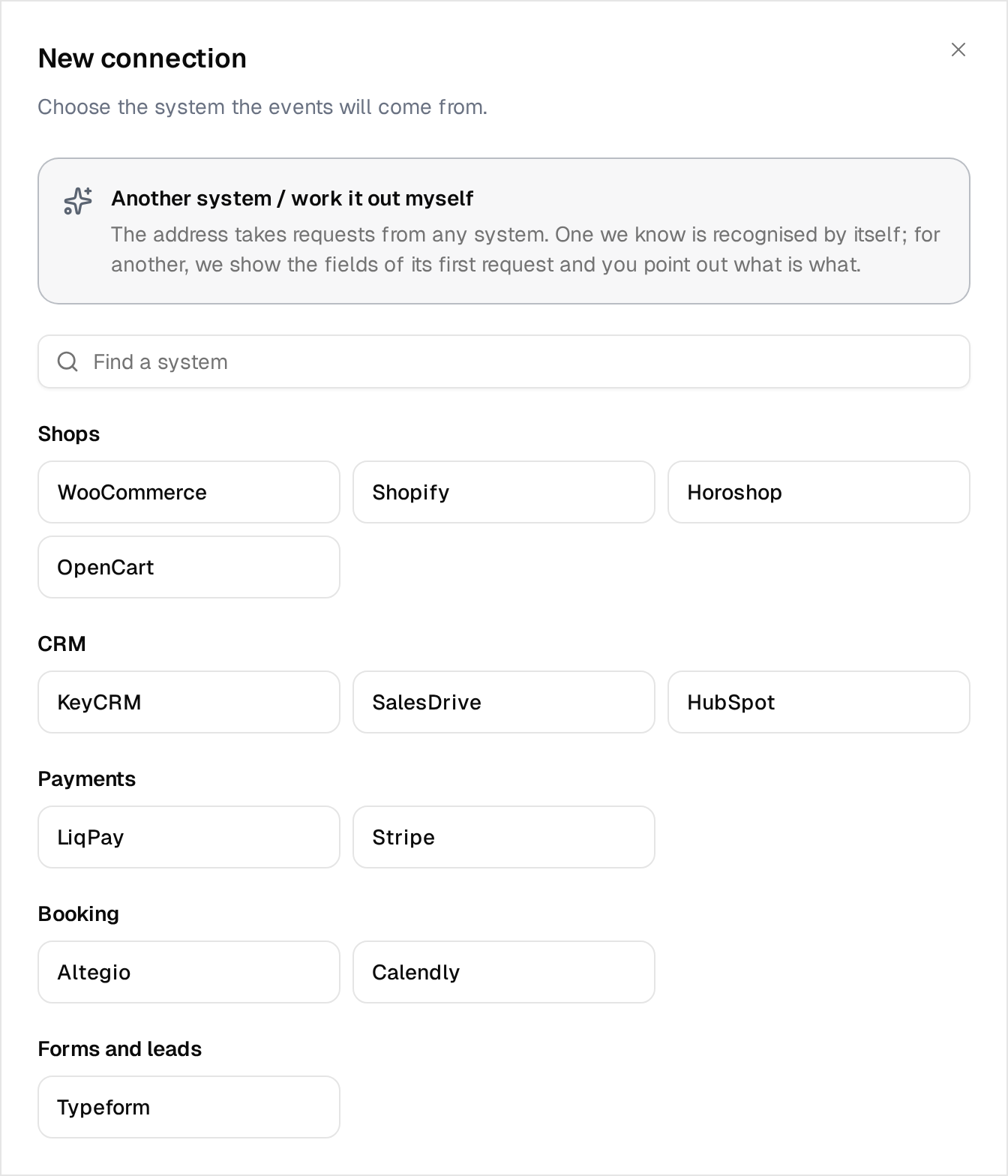
- Press New connection. The catalog shows the systems by category — Shops, CRM, Payments, Booking, Forms and leads, Help desk, Telephony, Marketing, Other — with Find a system above them. A system that is not in the catalog is connected too: choose Another system / work it out myself at the top.
- Check what you connect. Events it sends lists the events of the system, and How to connect it opens its instruction. Connection name is filled in with the name of the system: change it if you connect two systems of the same kind. Press Get the address; Back returns to the catalog.
- The address is shown once. Press Copy and paste it into the webhook settings of your system. It looks
like
https://events.alphasms.net/hooks/<TOKEN>. Later the cabinet cannot show it again, only issue a new one — see A new address. - Make the system send a test event: a test button, or a test order or booking with your own phone. The window waits by itself and says An event has come in., or A request came in but made no event with the reason. Open the connection shows it.
The window with the address closes only with Done: a click outside it or Esc does not lose the address.
Another system has no list of events: its address takes requests from any system. One the catalog knows is recognised by itself; for any other, you show the fields of its first request.
Keep the address secret: whoever has it sends events to your account. Give every system a connection of its own — then one can be deleted without stopping the others.
Where each system keeps its webhook settings and which events to choose — Connecting systems, for example KeyCRM, WooCommerce or Altegio. A system outside the catalog — Other system.
The connection
A click on a connection opens it: its name, its system and its status, what came to its address, the address and the deletion.
- Waiting for the first request… — nothing has come yet; the window updates by itself.
- A request that became events shows them with their contact and properties, under Recognised: … when the system was recognised by the request, or under The request became an event.
- A request that was turned down shows its fields straight away, so that you can show what is what — see The fields of a request.
- Latest requests — the last requests to the address, each with what it became: its events, Still being processed or the reason it was turned down. Choose one to see its fields. Requests are kept for a short while: when the list is empty, send a new event from the system.
The fields of a request
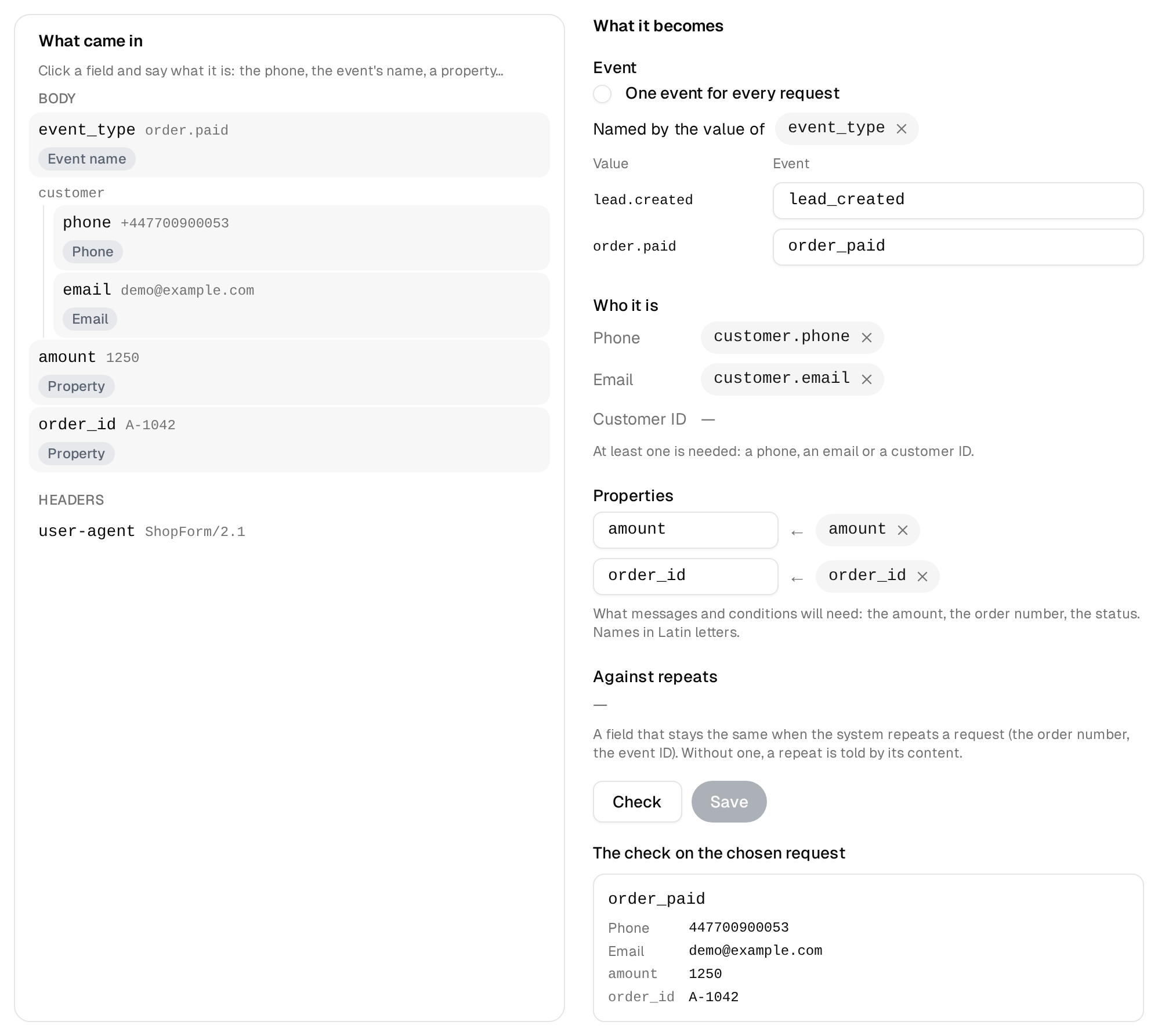
What came in shows the request as a tree — Body, Headers, Address parameters — every field with its value. Click a field and say what it is:
| Role | What it is |
|---|---|
| Phone | The customer's phone |
| The customer's email | |
| Customer ID | Your system's id of the customer |
| Event name | The field whose value says what happened: a status, a type |
| Property | A value your messages and conditions need: the amount, the order number, the status |
| ID against repeats | A field that stays the same when the system repeats the request: the order number, the event ID |
Every role except Property belongs to one field: given to another field, it moves there. One field can have several roles — the order number can be both a property and the ID against repeats. A ticked role is taken off with the same click.
What it becomes shows the result:
- Event. One event for every request — enter its name, for example
order_created. Or give a field the role Event name: then The field's values and their events lists every value the field had in the latest requests, each with its event, filled in from the value in Latin letters. Change them to the names your flows expect. A value left empty is not mapped: a request with it is turned down with "the event is not mapped". - Who it is. At least one of the phone, the email and the customer ID.
- Properties. Every property gets a name in Latin letters; the cabinet suggests one from the field.
- Against repeats. Without it, a repeated request is told by its content.
An event's name takes Latin letters, digits and _ . : -, starts with a letter and is up to 64 characters long; a
property's name takes Latin letters, digits and _, with the same start and length. The ready-made templates
expect events such as order_created, order_paid and appointment_scheduled — see
Recommended events.
Check runs what you showed on the chosen request and shows what it would become — the events or the reason it is turned down — and records nothing. Save applies it: "Saved. The next requests are read this way." For Another system that the catalog did not recognise, the event and who it is are required: until they are shown, the cabinet says what is missing and Save stays off.
A request the catalog recognised needs nothing from you. Adjust the fields under its events opens the same tree, to correct how the requests are read.
A new address
The address is shown only when the connection is made. If it is lost or got into the wrong hands, the owner presses Get a new address in the connection and confirms. The new address is shown once, with Copy. It takes requests at once, and the old one takes them for 24 more hours: paste the new one into the system within that time. Until then the connection says The previous address takes requests until ….
Deleting a connection
Delete the connection, after a confirmation: the address stops taking requests at once. The events that came already stay in the event journal.
Who can do what
| Who | What they can do |
|---|---|
| The owner of the space, with write access | Connect a system, get a new address, delete a connection — and everything below |
| A user with write access | Show the fields of a request, check and save |
| Anyone who can see the section | See the connections, their requests and what came of them |
Everyone but the owner sees the note "Only the space's owner creates, reissues and deletes connections."
For a developer
What the address accepts and answers, handshakes, the daily limit of events, signatures and repeated requests — Connection address.