Building a flow in the editor
Screen: the flow editor, address /flows/<number of the flow>. It opens from the list of flows by the name
of a flow, and right after a flow is created.
The editor has three tabs: Steps — what the flow does; Rules — what holds for the whole flow (Rules of a flow); Versions — what has been published (Testing and publishing). The buttons in the header — Report, Export, Test, Pause, Stop and Publish — are described on the same pages.
Creating a flow
The list of flows has three buttons.
| Button | What happens |
|---|---|
| From a template | The gallery of ready-made flows — Creating a flow from a template |
| From scratch | The New flow panel asks for a name and creates an empty draft |
| Import JSON | Loads a file made with Export — a copy of a flow from another account or a saved version of your own |
A flow imported under the key of an existing flow becomes the draft of that flow; with a new key it becomes a new flow. Copy in the menu of a row of the list makes a copy of the flow as a new draft.
The draft saves itself
Everything you change goes into the draft, and the draft is saved by itself as you edit: the header shows Draft saved, Saving… or Unsaved changes. If saving fails, the header says so and offers to try again.
While the flow has a published version, the editor reminds you: "You are editing a draft. Version N keeps running as it was until the draft is published." The customers inside the flow keep following the working version — the draft changes nothing for them until you publish it.
If a flow was made outside the editor and holds settings the editor does not know, it opens view-only: such a flow is changed with a JSON import, so that nothing in it gets lost.
Diagram or list
The steps can be seen as a Diagram or as a List — the switch is above the steps; the editor remembers your choice.
- Diagram — the flow as a chart with its branches. Click a step to change it; the + on a line adds a step exactly in that place. The buttons in the corner zoom the chart and fit it into the screen.
- List — the steps one under another. A step is moved by dragging or with the arrows on its card, and Add a step puts a new one at the end.
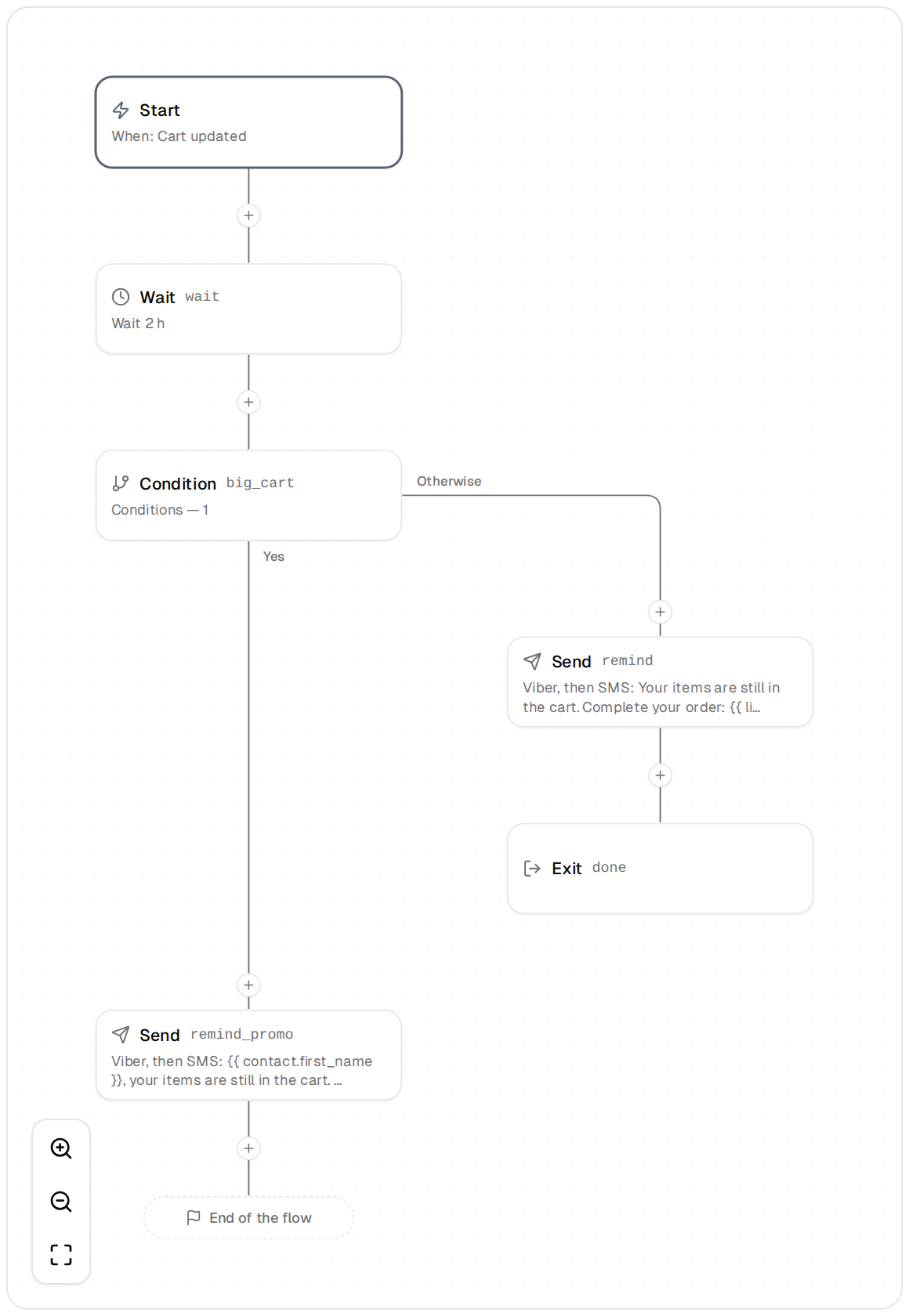
The settings of the selected step open next to the steps. Under them the editor lists What blocks publication: the errors that must be fixed before the flow can be published. A draft with errors is still saved.
The start
Every flow begins with the Start: the event after which a contact enters the flow. Pick it from the list of event types; an event that has never arrived is marked "not received yet" — the flow will not start until it comes (Connections).
Filters narrow the start: the flow starts only for events that pass them — for example, orders above a certain amount. Whether the same contact can enter again is set on the Rules tab.
Steps
| Step | What it does |
|---|---|
| Wait | A pause before the next step |
| Wait for an event | Waits for another event from the same contact, and branches on whether it came |
| Condition | Checks the event, the contact or the history, and branches |
| Send | Sends a message — The «Send» step |
| Note to a manager | Sends a note to your manager by e-mail |
| Update a field | Writes values into the contact's fields |
| Webhook | Calls your system |
| Exit | The contact leaves the flow at this step |
A flow holds up to 50 steps. Each step has an id — Latin letters, digits and «_»: reports and webhook answers refer to steps by it.
Wait
| How to wait | Example |
|---|---|
| For a set time | Two hours after the order |
| Until a time of day | Until 10:00 |
| Business days | One business day, by the calendar from the settings; with At the same time of day the step keeps the hour of the event |
| Until a date of the event | A day before visit_at: a property of the start event that holds a date, plus or minus hours or days |
For a date of the event the step asks what to do If the moment has already passed: Send at once — go on without waiting; Do not send — the contact leaves the flow. The second is right for reminders: "your visit is tomorrow" two hours before the visit is not true. If the event carries no such date at all, the contact leaves the flow, and the report names this reason.
Wait for an event
Waits for another event from the same contact — for example, a payment after an order — but no longer than How long to wait. Events are counted Since the start event or Since this step began. The step has two branches: The event came and The event did not come.
Condition
A condition checks one or several things:
- An event property or a contact field — equals, greater than, one of, contains, is set and so on;
- A variable is set — the event or the contact has a value;
- How many times an event happened — at least N times in the last N days, for example three orders in 90 days;
- An event after the start — whether something happened since the contact entered the flow;
- What happened to the last message — sent, delivered, a link was clicked, failed.
Several conditions are joined with All conditions (and) or Any condition (or), and each one can be turned around with not. When the conditions hold, the contact goes on; when they do not, it follows the Otherwise branch.
Branches
Each branch ends in one of three ways: Continue — back to the main line after the step; Leave the flow; Its own steps — a few steps of the branch's own. Branches are one level deep: a step inside a branch cannot open branches of its own.
Note to a manager, contact fields, webhook
- Note to a manager — a subject and a text, which may hold variables. The address for the notes is set in the settings; without it the publication warns that the note has nowhere to go.
- Update a field — writes values into the contact's fields; a value may be a variable, for example
{{ trigger.amount }}. The fields are seen in the contact's card. - Webhook — sends a
POSTin JSON to your system's address: the flow, the step, the contact with its phone, e-mail and fields, and the start event with its properties. Only a publichttps://address is accepted. While the call is not finished, the contact waits on the step. When your system answers 5xx, 408 or 429 or does not answer, the call is retried with growing pauses for up to a day (unless retries are switched off in the step); other 4xx answers are not retried. A call that failed for good lets the contact go on, and the report shows the step as skipped. - Every webhook request is signed: the header
X-Flow-Signaturecarriessha256=and an HMAC-SHA256 of the body made with the signing secret from the settings; a repeated call carries the sameX-Flow-Idempotency-Key. A2xxanswer with a JSON object is kept, and further steps can use its fields in conditions and texts aswebhook.<step id>.<field>.