Testing and publishing a flow: versions, pause and stop
Screen: the flow editor, address /flows/<number of the flow>: the Test, Publish, Pause,
Resume and Stop buttons in the header, and the Versions tab.
Test run
Test runs the flow on a test contact — your own phone or e-mail — before any customer sees it. The test executes the draft, or the running version when there is no draft.
- Mark yourself as a test contact once: Test contacts in the settings. Without a test contact the test has nobody to go to, and the panel offers to add one.
- Press Test and pick the Test contact.
- Pick a Sample event — a real event from the journal whose properties will fill in the variables — or No event — empty properties.
- Choose a Time speed-up: ×60 — an hour a minute, ×1440 — a day a minute or ×3600 — an hour a second. A flow with a two-day pause then passes in a couple of minutes.
- Press Start the test and watch Steps of the test: each step with its result, the message with its status, where the test is now and when it goes on.
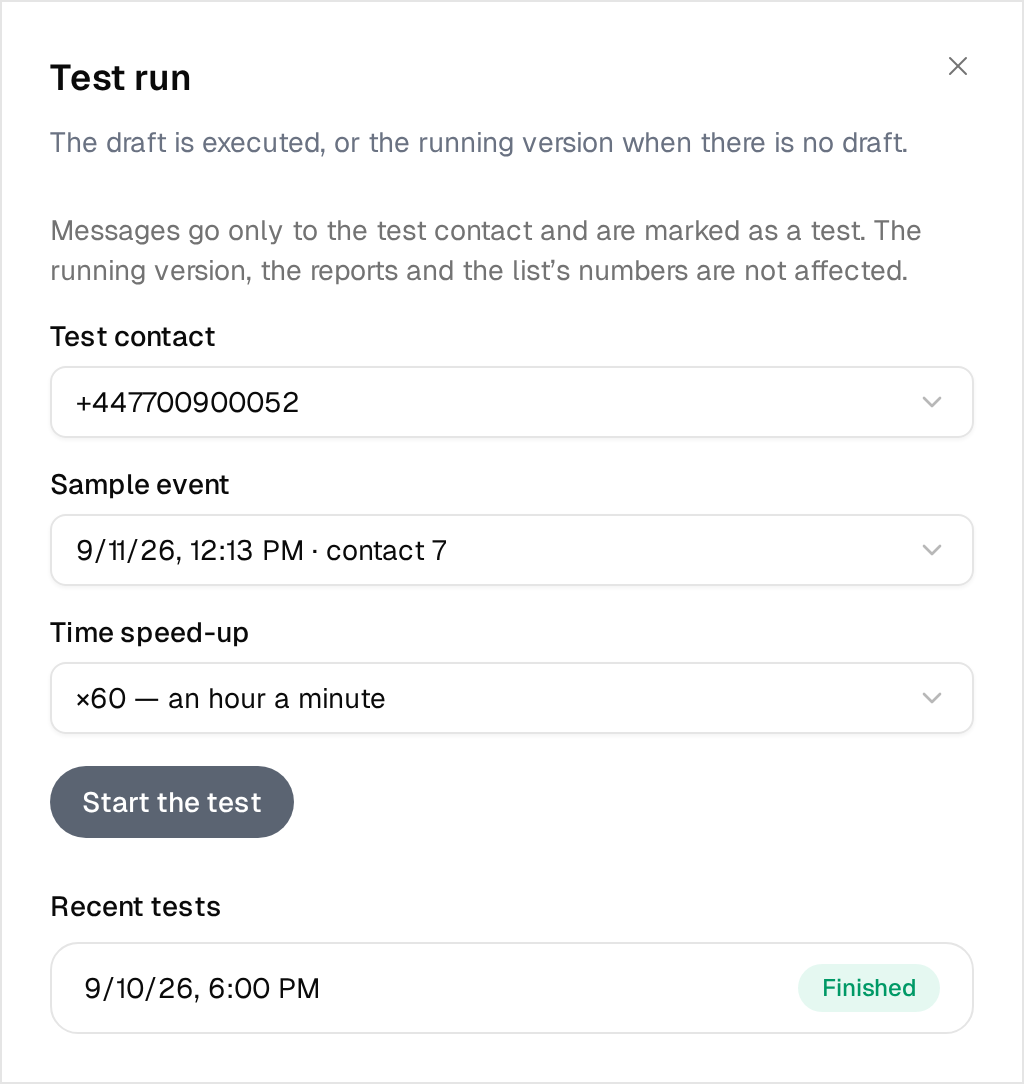
- The messages of a test go only to the test contact and are marked as a test. They are real messages from your account, at your usual rates; quiet hours do not hold them.
- A test changes nothing in the running version, the reports or the figures of the list of flows.
- A new test of the same flow on the same contact cancels the previous one. Recent tests keeps the last ones, so the steps can be seen again after the page is reloaded.
Publishing
Publish turns the draft into a new version, and from then on new events start the flow by it. The button is active only when the draft has unpublished changes.
Before publishing, the cabinet checks the flow and shows the result in the dialog:
- Fix these problems first — errors that block publishing: a missing text, a step without a sender name when the account has several, an unknown variable in a required field and so on. They are the same as under What blocks publication in the editor.
- Worth a look — warnings that do not block it:
| Warning | What to do |
|---|---|
| No goal is set | Without a goal the report cannot show whether the flow helps. Set one, or the default result in the settings: the dialog then says which result the flow takes |
| There is a control group but no goal | The same |
| The event has never been received | The start, exit, goal or awaited event has not come even once — check Connections |
| The channel is not connected | The step's channel cannot be used by the account: its messages will not go out |
| No approved sender name for the channel | Get a name approved — Sender names |
| The note to a manager has nowhere to go | Set the address in the settings |
| No signing secret for a webhook | The webhook requests go unsigned — issue a secret in the settings |
| RCS only, with no SMS after it | Those without RCS get nothing — choose "RCS, then SMS" |
The dialog also says what happens to the contacts already inside: "New participants follow the new version; N current ones finish the old one." A version does not change under someone who is halfway through it.
A flow can be published while it is paused — it stays paused. The number of flows working at the same time is limited — see Limits; above the limit, a new flow cannot be published until another one is stopped.
Versions
The Versions tab lists the published versions, the newest first: the one marked Running, and the number of participants still finishing each of them. Compare with the draft shows what changes if the draft is published: the name, the start and its filters, the rules, the order of steps, and every step marked as Added, Removed, Changed or Unchanged.

The report can be filtered by version, so the result of each edit is seen apart.
Pause, resume, stop
| Button | What happens | Back? |
|---|---|---|
| Pause | No new participants enter, and the timers of those inside freeze | Resume — the deadlines shift by the length of the pause |
| Resume | The flow lets people in again and the timers go on | — |
| Stop | The participants are taken out, and queued messages are not sent | No: those taken out do not come back. To start the flow again, change it and publish a new version |
Pause and stop ask for a confirmation. After a stop the cabinet says how many participants were taken out.
Export and import
Export in the header saves the flow as a JSON file: its steps, rules and texts. The file is loaded back with Import JSON in the list of flows — into another account or as a new flow of your own — see Creating a flow.