Connecting events: keys, the event journal and event types
Screen: Flows → Connections, address /flows/sources. Three tabs: Sources,
Event journal (/flows/sources?view=journal) and Event types
(/flows/sources?view=types).
Flows start on events from your site, CRM or booking system. This screen is where you give your systems a key, see what arrives and name what has arrived. A shop, CRM, payment or booking system can also be connected with no key at all, by its own webhooks. How a developer sends the events is in the developer section — Flows: sending events; here is what the cabinet shows about them.
Sources
Systems. At the top of the tab are your shop, CRM, payment and booking systems that send their webhooks to an address of their own, with no developer and no event key: a new connection from the catalog, its address, what came to it and which connections need attention — Systems.
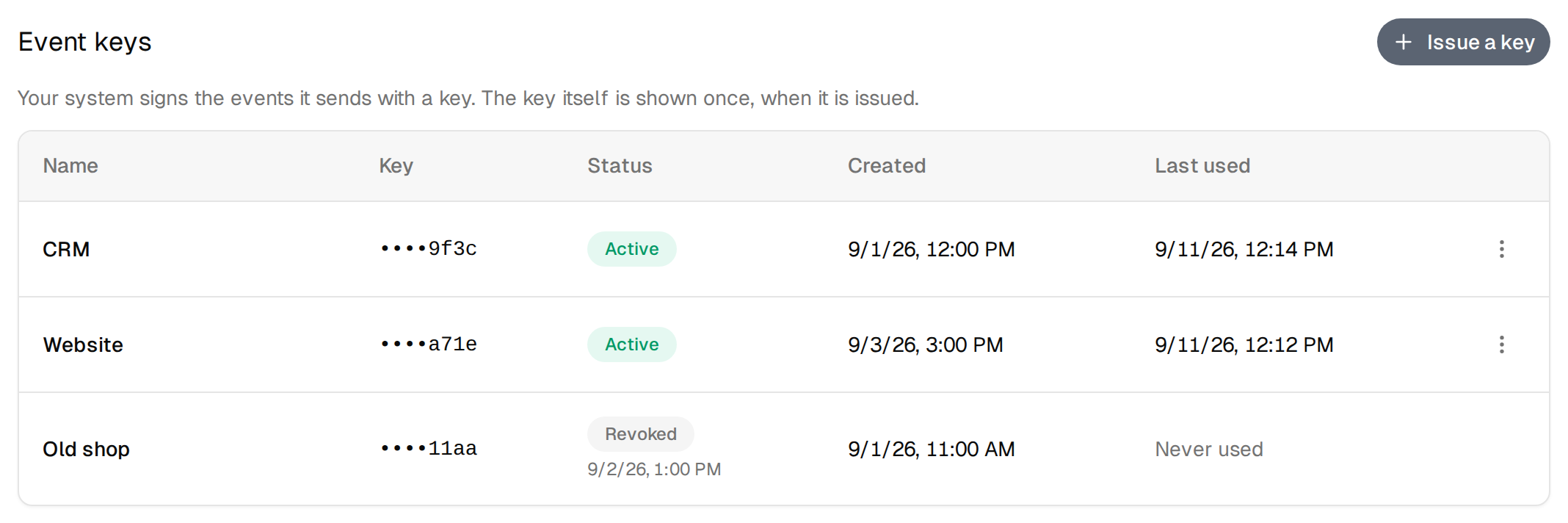
Event keys. Your system signs the events it sends with an event key. It is not the API key of your account: an event key only sends events to flows.
- Press Issue a key and give it a Key label that says which system uses it — "CRM", "Site".
- Copy the key at once: it is shown once, right after it is issued, and cannot be shown again. The list keeps only its last four characters.
- Give it to your developer.
- Rotate the key issues a new key and switches the old one off at once — update it in every system that sends events. Revoke switches a key off without a replacement.
- The list shows when each key was Created and Last used; "Never used" means no event has come with it yet.
- Event keys are managed by the owner of the account; other users see the list but cannot change it. Up to 20 keys can work at the same time.
More about keys — Event key.
How to send events. Under the keys the cabinet shows the Endpoint, a Sample request and the
Request body (JSON), each with a copy button: put your key in place of <KEY> and the first event is ready —
First event.
The SMS-Docs platform. Some events come from the platform itself, without any key — this source is read-only and shows when its last event arrived.
Event journal
Every event that came, the newest first, with what happened to it.
| Processing | What it means |
|---|---|
| Recorded | The event is accepted and tied to a contact; Flows started says how many flows it started |
| Pending | The request is accepted but not processed yet — its events appear within seconds |
| Rejected | The event did not pass the check: the reason is in the event's card |
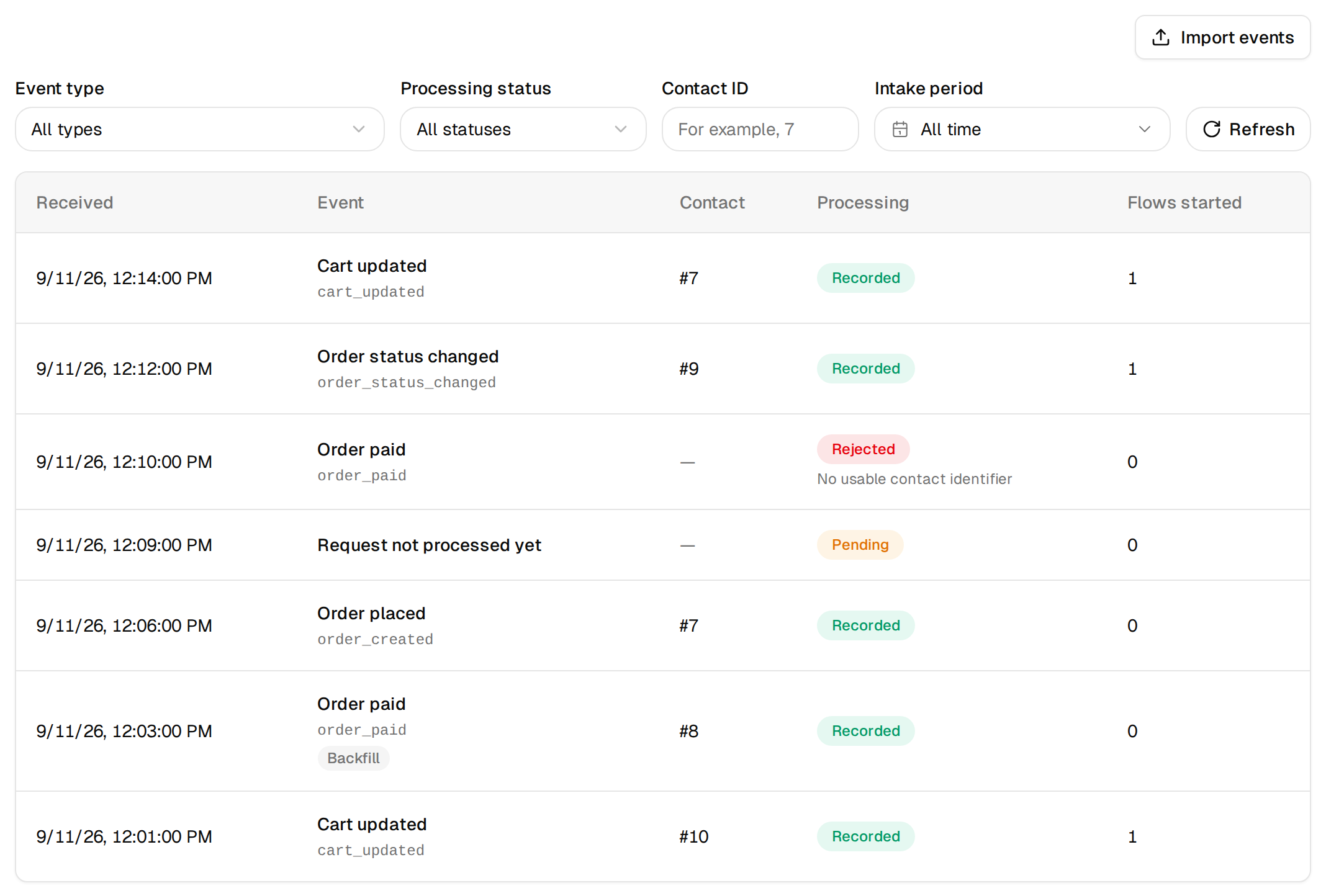
The journal is the only place where rejected events are seen: your system gets "accepted" for the whole request, and the check comes a few seconds later. The reasons and what to do about each — Refused events.
A line opens the event's card: the three times (when it happened, was received and processed), the contact, the properties, Flows it started, Warnings, Schema mismatches, and The event as it came with Copy JSON. The warnings are explained in Warnings.
The journal is filtered by Event type, Processing status, Contact ID and Intake period; Refresh fetches the newest lines. An event marked Backfill was loaded as history and starts no flows.
Event types
A type appears by itself when the first event with a new name arrives, and it is marked New. Open it and
give it a Name for people — "Order paid" instead of order_paid: the editor and the texts show the name, and
the type is no longer new. The Needs attention block on the list of flows reminds about types without names.
- Property names — titles for the properties of the event; the type of each property (text, number, date and time…) is inferred from the events, and such a property is marked inferred.
- Hidden — a type that is not offered in the flow editor, for events you send but do not build flows on. Show hidden brings them back into the list.
- Events in 7 days — how often the type comes.
Which event names and properties the ready-made templates expect — Recommended events.
Loading history from a file
Import events on the Event journal tab loads past events — orders, visits, payments — from a CSV file. The events go into the journal as history: reports, goals and conditions like "bought three times in 90 days" count them, but they start no flows and do not use the daily limit of events.
- Choose the file: the first row names the columns; UTF-8 or Windows-1251, up to 20 MB and 100,000 rows.
- Say where the type of the event is: One type for the whole file (enter it, for example
order_paid) or The type is in a column of the file. - Match the columns: Event time and at least one of Phone, Email, Customer ID are required; Event ID (against duplicates) keeps a repeated import from doubling the events; any other column becomes a property of the event, or is left out with Do not import.
- Press Import. At the end the dialog shows how many events were Recorded, how many were Duplicates and how many were Refused, with the reasons for the refused rows.
A time without a zone is read in the time zone from the flows settings. The file format in detail — Importing history from CSV.