Flows: messages that go out on their own
Screen: Flows, address /flows.
A flow sends messages when something happens in your business: an order is placed and not paid, a cart is left, an appointment is tomorrow, a customer has been silent for two months. Your site, CRM or booking system reports these moments to SMS-Docs as events, and the flow decides what to send, to whom and when. You set it up once — after that it works by itself.
- Messages go out on behalf of your account, from its balance and at your usual rates. A flow has no price of its own: you pay for the messages it sends.
- A flow sends under the sender names approved for your account — the same ones as in your campaigns.
- A message never reaches someone who has refused it: quiet hours, frequency limits, consents and the stop list are checked before every send.
Who has the section
The section is not open to every account yet. While it is closed for yours, there is no Flows item in the left menu at all.
When the section is available but not switched on, the menu has a single Flows item. It leads to a page that shows what flows do, with a Get started button.
Switching on. Press Get started, read the terms of use, tick I accept the section's terms of use and press Switch on. The cabinet needs up to a minute for it, and then the section opens.
- Only the owner of the account can switch the section on, and in a company — the company's owner. Everyone else sees a note saying so instead of the button.
- When the terms change, the cabinet asks to read and accept them again.
- Your personal workspace and a company you work in are two separate sets of flows: each has its own flows, contacts, balance and sender names.
Viewing only. If you can see flows but cannot change them, the section says "The section is read-only: you do not have the right to change flows". The buttons that change something are hidden; reports, contacts and the event journal stay readable.
Switching the section off is described in Flows settings.
What is where
After switching on, the left menu gets a Flows group with four items.
| Menu item | Address | What is there |
|---|---|---|
| Flows | /flows | The list of flows, what needs attention, the templates, the editor and the reports |
| Contacts | /flows/contacts | A customer's card and timeline: what came, what was sent, why something was not |
| Connections | /flows/sources | Event keys, the event journal, event types and loading history from a file |
| Settings | /flows/settings | Quiet hours, frequency limit, sender names, the calendar, test contacts, limits |
The first flow
- Connect the events. Your developer issues an event key and sends the first event — Connections and the developer section Flows: sending events.
- Pick a template. Creating a flow from a template — the flow appears as a draft with ready texts and pauses.
- Adjust the text and the sender name — The «Send» step.
- Try it on yourself. Add your own phone as a test contact and run a test — Testing and publishing.
- Publish. From that moment new events start the flow — and its report begins to fill in.
Customers do not receive anything until the flow is published: a draft and a test run send nothing to real contacts.
The list of flows
The Flows item opens the list. While there is not a single flow, the same page shows what flows do and leads to the templates.
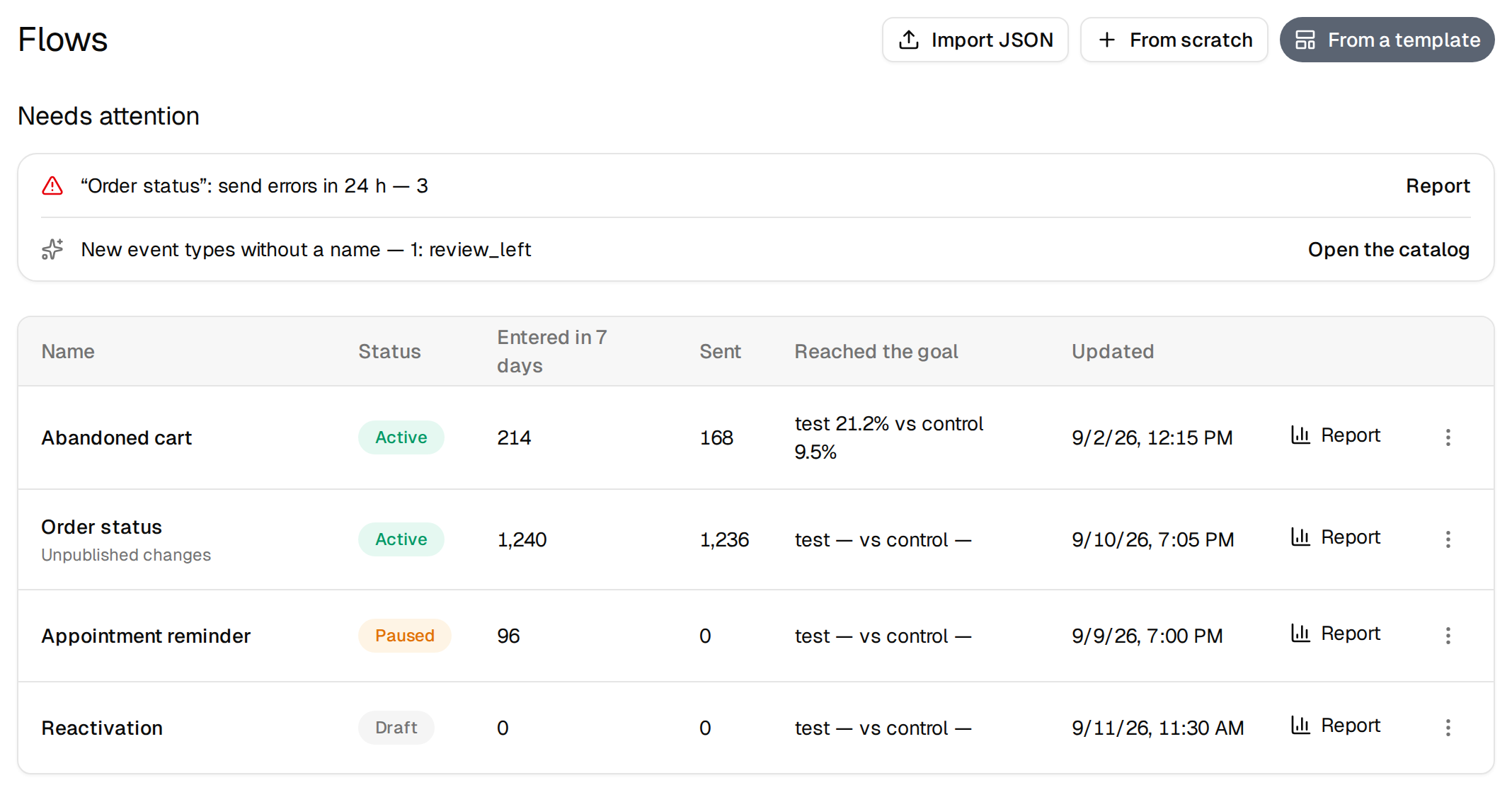
| Column | What it shows |
|---|---|
| Name | Opens the editor |
| Status | Draft — never published; Active — working; Paused — lets nobody in, the clocks of those inside are stopped; Stopped — finished for good. "Unpublished changes" — the draft differs from the working version |
| Entered in 7 days | How many contacts entered the flow in the last seven days, both groups together |
| Sent | How many of them got a real message: the control group gets none |
| Reached the goal | The share of the test group against the share of the control group, if the flow has a goal — see Rules |
| Updated | When the flow was last changed |
The Report link in a row opens the flow report. The menu at the end of a row has Copy (the copy is created as a draft) and Export (the flow as a JSON file).
Above the list there are three ways to create a flow: From a template, From scratch and Import JSON — see The flow editor.
Needs attention
Above the list the cabinet collects what is worth a look right now.
| Line | What it means | Where it leads |
|---|---|---|
| Send errors in the last hours | The flow tried to send, and the channel refused | The flow report |
| New event types without a title | Events with new names came: give them titles | The event types |
| No entries for several days | A working flow that nobody has entered for a week: the event does not come, or the filter lets nobody through | The editor |
| Event processing is behind | Requests wait to be processed: the figures may be incomplete for a while | — |
| The sends-per-day limit is used up | Messages are not lost: they wait and go after the limit resets | Limits |
| The events-per-day limit is used up | New events are refused until the limit resets | Limits |
| The active flows limit is reached | A new flow cannot be published until one of the working flows is stopped | Limits |