Finding a message that came in
Screen: Received SMS, address /incoming/received. The whole incoming section opens on
it: /incoming leads here.
The toolbar
Four controls in one row, and the search works while you type.
| Control | What it does |
|---|---|
| Period | The dates on screen; the report opens on its own default period |
| Field | What to search in: the number, the subscriber or the prefix |
| Search box | Applies by itself, a fraction of a second after you stop typing |
| Export | Saves the current selection to a file |

The period and the search live in the address bar, so a filtered screen can be sent to a colleague as a link. One detail matters when you do that: a link carries the dates you put into it, and a link without dates opens on the default period of whoever follows it. If the dates matter, keep them in the address.
The search matches the whole value of the chosen field. The cabinet highlights the matching part in the Prefix column, so a prefix search shows you what it matched.
The table
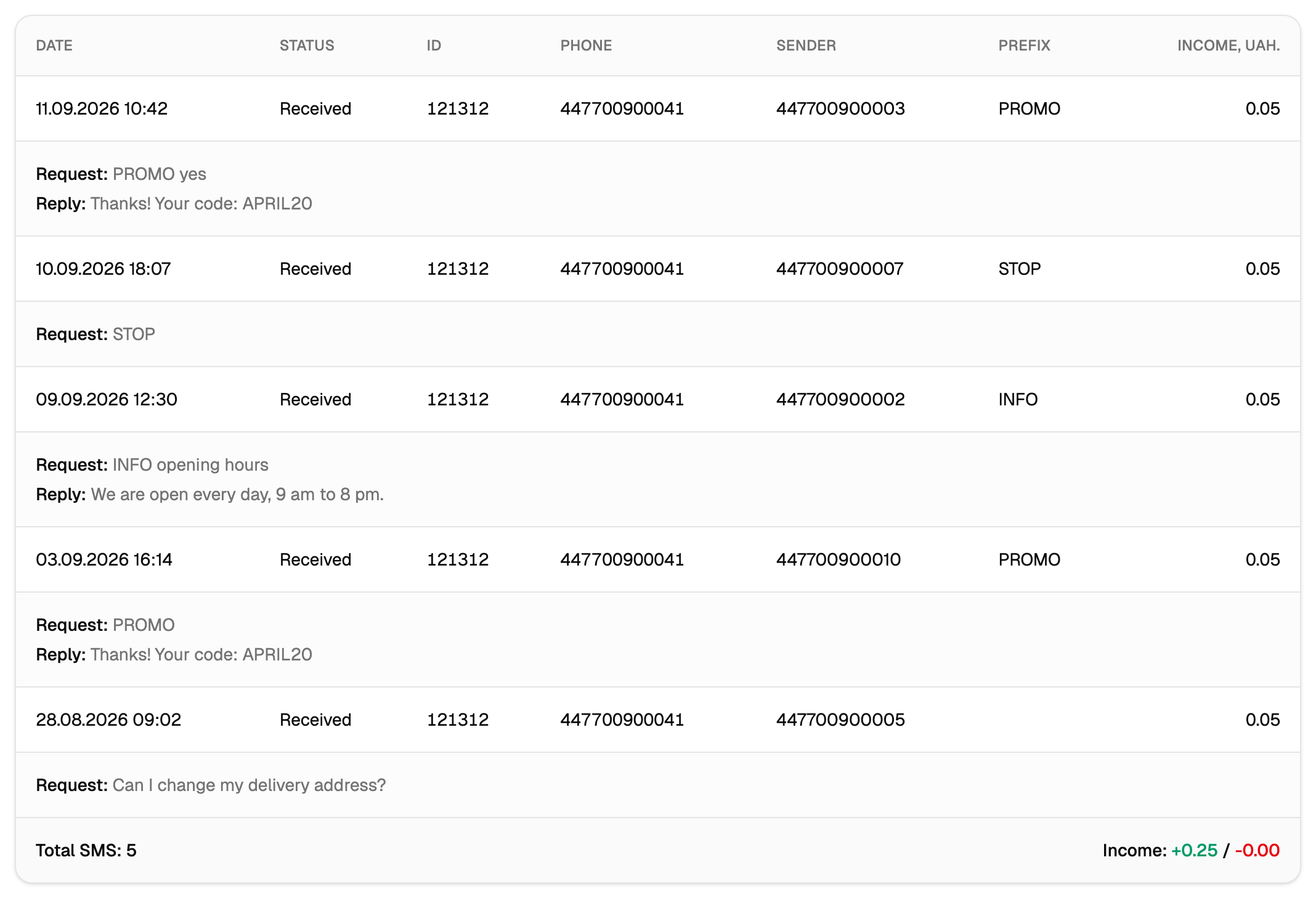
| Column | What is in it |
|---|---|
| Date | When the message was received |
| Status | The state SMS-Docs left it in |
| ID | The identifier of the message |
| Number | The short number the message arrived at |
| Subscriber | The number it came from |
| Prefix | The keyword the message was recognised by |
| Income | What this message earned or cost |
Right under a row, the cabinet shows a second, wider row with the text: Message — what the subscriber wrote, Reply — what was sent back to them. It appears by itself whenever the message carries a text or a reply, and there is nothing to click.
The Status column is the working tool of this screen. Everything else answers "who wrote and when"; the status answers the only question people actually come here with — what happened to the message after it arrived.
The bottom line
The table ends with a summary line, and it holds two amounts, not one: the total earned and the total charged, side by side. They stay apart on purpose — an incoming service can bring money in and take money out in the same period — and both are counted over the whole selection rather than the current page.
Pages
The page size selector under the table sets how many rows go on a page. It stays on screen even when there is a single page, so the way back to a short page is always at hand.
Export
The export takes the current selection: the period, the field and the search value, not just the page on screen. The file is XLSX.
The button starts the work and gives back its number straight away, while the result arrives a little later — the progress and the outcome appear on the same screen. Keep the tab open until it reports that it is done, and press the button once: a second press starts the work a second time.
Export appears as soon as the selection has rows to save. Widen the period and it comes back together with them.
The two empty screens
They look different and they mean different things.
A card in the middle of the screen, with an explanation and a button — the account is waiting for its first incoming message. It is the normal state of an account before a short number and a keyword are set up; the button leads to the guide to incoming messages on the SMS-Docs site.
The table with the word "empty" in it — the account does receive messages, and this period with this search matched none of them. Clear the search box and widen the period.